

4 WooCommerce Phone Paths to Test, From Push Alerts to Voice Support
Connect WooCommerce to phones with push alerts, SMS, WhatsApp, and voice support. Configure consent, check delivery, and test each path before launch.


Connecting WooCommerce to a phone comes down to four paths: the official Woo Mobile App for push alerts, SMS gateways paired with a WooCommerce plugin for customer texts, the WhatsApp Business API for two-way chat, or a voice agent for live phone support. Admin alerts fit the mobile app, order updates fit SMS, conversational messaging fits WhatsApp, and round-the-clock phone support fits a voice agent.
TL;DR:
- The Woo Mobile App sends alerts without Jetpack only at version 25.0.1 or later; older versions rely on Jetpack, and Android battery settings can delay delivery.
- Gateway SMS can cost $0.01 per message at volume, while plugin fees add charges and high volume may require a short code.
- Stores should record when and how each customer consented, honor STOP replies across all channels, and provide a clear opt in at checkout.
- WhatsApp automation requires a verified Meta Business Manager account and preapproved templates, while Meta charges per message separately from plugin or gateway fees.
- Orphora AI charges $9.99 monthly per agent plus $0.10 per conversation minute, answering order and return questions using live WooCommerce data.
Table of Contents
- Overview: the phone-integration options at a glance
- Woo Mobile App push notifications: install and quick setup
- SMS notifications via gateways and WooCommerce extensions
- WhatsApp Business API integration for order updates and two-way messaging
- Compliance and opt-in best practices for SMS and phone messaging
- Costs, deliverability, and phone-number considerations
- Testing and troubleshooting checklist before you go live
- When to use a phone-based voice agent for customer support
- Pairing automated messages with human escalation
- Orphora AI: a voice-based path to 24/7 WooCommerce support
- FAQ
- Sources
Overview: the phone-integration options at a glance
Each method solves a different problem, and picking the wrong one usually means paying for features you never use.
- Woo Mobile App: one-way push alerts to the store owner for new orders and low stock, free, and quick to set up.
- SMS via gateway and plugin: one-way or two-way text messages to customers, low per-message cost, moderate setup involving an SMS plugin and a gateway account.
- WhatsApp Business API: templated and conversational messaging, higher setup effort due to Meta approvals, strong for international customers.
- Voice agent: spoken, two-way phone support with order lookup, the most capable option for stores that get real call volume.
A small store usually starts with push notifications and adds SMS once order volume grows. WhatsApp and voice support tend to matter once customers start asking for help, not just updates.
Woo Mobile App push notifications: install and quick setup
The official Woo Mobile App handles push alerts without requiring the full Jetpack plugin, as long as you run WooCommerce alongside app version 25.0.1 or later. Older app versions depend on Jetpack for notification delivery, so check your version before troubleshooting a missing alert.
- Update WooCommerce to the latest stable release from your WordPress admin.
- Install the Woo Mobile App from your phone’s app store and log in with your store credentials.
- Open Menu, then Settings, then Notifications, and choose which events trigger a push: new orders, stock thresholds, or reviews.
- Set a minimum order value if you only want alerts above a certain amount.
Pro Tip: Filter notifications by order value and double-check your phone’s battery optimization settings, since aggressive Android power-saving can silently delay or block push delivery.
SMS notifications via gateways and WooCommerce extensions
SMS plugins act as a bridge between WooCommerce order events and an SMS gateway like Twilio, Vonage, or ClickSend. You enter your gateway’s Account SID and API key into the plugin settings, then map store events, new order, shipped, refunded, to message templates.
- Capture the customer’s phone number at checkout and validate its format to catch typos before they cause failed sends, a feature built into WooCommerce’s SMS extension.
- Keep templates short and include personalization variables like order ID and tracking link so the message stays useful within SMS character limits.
- Separate admin alerts (internal, for staff) from customer-facing messages (external, for shoppers) so each audience gets only relevant texts.
- Check delivery status in the order notes after sending a test message. Outbound SMS pricing in the US can run as low as $0.01 per message at volume, depending on the gateway and plan.
Plugins also commonly let admins send a manual SMS directly from the order screen, which is useful when a shipment gets delayed and you want to update one customer without waiting on an automated trigger.
WhatsApp Business API integration for order updates and two-way messaging
WhatsApp integration takes more setup than SMS because Meta requires a verified Business Manager account and pre-approved message templates before you can send anything automated, and using a WhatsApp chat widget on your website can complement official API messaging with easy customer access.
- Create a Meta Business Manager account and set up a WhatsApp Business Account (WABA).
- Register a dedicated sender number and generate an access token for your WooCommerce plugin or gateway.
- Connect webhooks so incoming customer replies route back into your WordPress admin.
- Submit message templates for order confirmation, shipping, and delivery events for Meta’s approval before going live.
Once approved, WooCommerce’s WhatsApp extension sends templated updates automatically and lets customers reply, with admins answering from inside WordPress. Twilio’s WhatsApp documentation covers sender registration and webhook setup in more technical detail, including a sandbox for testing templates before they go live. Meta bills per message separately from whatever plugin or gateway fee you pay, so budget for both.
Compliance and opt-in best practices for SMS and phone messaging
Automated texting carries real legal exposure if consent isn’t documented. The FTC’s guidance on text messaging stresses that businesses need clear consumer consent before sending commercial messages to a wireless device, along with an easy way to opt out.
- Use double opt-in where possible: capture consent at checkout, then send a confirmation message requiring a reply or click before automated texts begin.
- Log the timestamp and method of consent in order metadata, so you have a record if a customer disputes receiving a message.
- Honor “STOP” replies immediately and apply the opt-out across every channel, not just the one it arrived on.
- Place opt-in language at checkout, in account settings, and on the order-received page, worded plainly: “Text me order updates” with a visible checkbox.
One documented best practice: regulatory guidance and FTC commentary recommend recorded consent and careful opt-out handling to reduce legal risk under the TCPA. Skipping this step is the most common way automated messaging turns into a compliance headache.
Costs, deliverability, and phone-number considerations
Running costs depend on channel and volume. SMS through a gateway like Twilio can cost close to $0.01 per message at scale, while WhatsApp carries a separate per-message fee from Meta on top of whatever your plugin or gateway charges.
- Decide between a toll-free number, a local number, or a short code based on expected volume. High-volume senders often need a short code to avoid carrier filtering.
- WhatsApp requires its own verified sender number, separate from your business’s regular phone line.
- Use validated phone numbers at checkout, keep templates free of spammy language (excess punctuation, all caps, suspicious links), and monitor delivery logs to catch carrier filtering early.
Testing and troubleshooting checklist before you go live
Run through real scenarios before launch, not just a single test order.
- Place a test order, trigger a status change, process a partial refund, and complete a guest checkout to confirm each fires the right message.
- Send to an international number if you serve customers abroad, since formatting and delivery rules vary.
- Check your gateway’s dashboard and WooCommerce order notes to confirm delivery status is logged correctly.
- Verify webhook endpoints are reachable and returning the expected response for inbound WhatsApp or SMS replies.
Pro Tip: Most “missing message” issues trace back to a wrong timezone setting, a truncated template, or a phone’s notification permissions quietly turned off after an OS update.
When to use a phone-based voice agent for customer support
SMS and WhatsApp handle updates well, but neither lets a customer talk through a problem the way a phone call does. A voice agent adds spoken, two-way conversation: a customer can ask about an order and get an answer pulled from real-time order and customer data, without waiting on hold.

Voice agents connect directly to WooCommerce order data, which lets them answer status and return questions on a live call, at any hour, and bill by the minute rather than by seat. For stores with meaningful call volume, where customers would otherwise wait on hold or leave a voicemail, a voice agent covers ground that texting alone can’t reach. For guidance on when a conversation still needs a human, build an escalation path alongside it.
Pairing automated messages with human escalation
We think automation earns trust when it’s predictable: clear triggers, clear templates, and a fast handoff to a human for anything unusual. Track response time and resolution rate, not just message volume, to know if it’s actually working.
— Orphora AI
Orphora AI: a voice-based path to 24/7 WooCommerce support
We built Orphora AI for stores that want phone support without staffing it around the clock. Our voice agents plug into WooCommerce order data directly, answer common questions like order status and returns on a live call, and run on a simple AI Voice Agent plan at $9.99 per month per agent plus $0.10 per conversation minute.
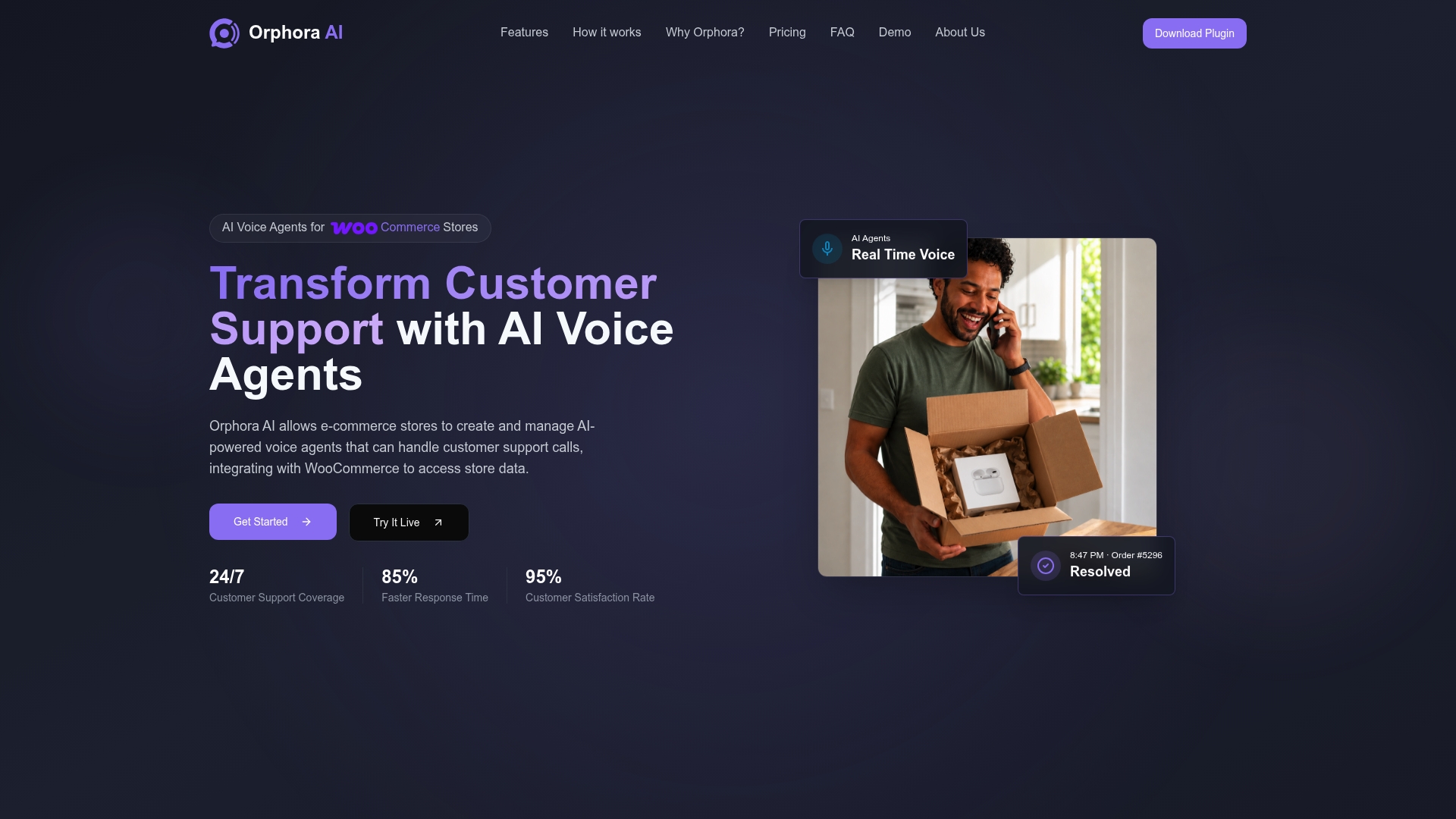
If SMS and WhatsApp cover your updates but calls still pile up, visit our feature page to see how the integration works, or head to Orphoraai to request a demo.
FAQ
How do I set up a WooCommerce website?
Install WordPress, add the WooCommerce plugin from your dashboard, and follow its setup wizard to configure products, shipping, and payment methods. Most stores also install the Woo Mobile App afterward to get push notifications for orders directly on a phone.
What are the downsides of using WooCommerce?
WooCommerce requires you to manage hosting, updates, and plugin compatibility yourself, which takes more ongoing attention than an all-in-one platform. Phone and messaging features, like SMS or WhatsApp notifications, aren’t built in and need separate plugins and gateway accounts such as Twilio or ClickSend.
Can WooCommerce integrate with USPS?
WooCommerce supports shipping carrier integrations, including USPS, through official and third-party shipping plugins that calculate rates and generate labels at checkout. These are separate from the SMS and WhatsApp notification plugins covered here, though both can trigger from the same order events.
How do I connect accounting software like Tally with WooCommerce?
Connecting Tally to WooCommerce typically requires a third-party sync plugin or middleware that maps WooCommerce orders to Tally’s accounting entries. Availability and setup vary by extension, so check the specific plugin’s documentation for supported Tally versions before installing.
How much does SMS notification cost for a WooCommerce store?
Outbound SMS through a gateway like Twilio can cost as little as $0.01 per message at higher volumes, on top of whatever your WooCommerce SMS plugin charges. WhatsApp messaging adds a separate per-message fee from Meta once you move past the free tier.
Sources
- Woo Mobile App notifications Documentation – WooCommerce
- SMS Customer Notifications for WooCommerce
- Order notifications on WhatsApp — WooCommerce
- WhatsApp Business Accounts with Twilio
- Candid answers to CAN-SPAM questions | Federal Trade Commission